Keep a new or imported campaign Off until its sender, messages, schedule, audience, and reply behavior have all been reviewed.
The live-test steps below cover the verified text-message workflow. Email has separate sender, destination, reply, and unsubscribe checks; see Use Email in Wave Campaigns.
Prepare a Text-Message Test
- Select a TCR-approved Wave sending number.
- Keep the campaign Off.
- Add one test contact with a phone number you own or are authorized to use.
- Confirm that the test contact has every field used in the messages, such as a first name.
- Review the campaign's broadcast hours and time zone.
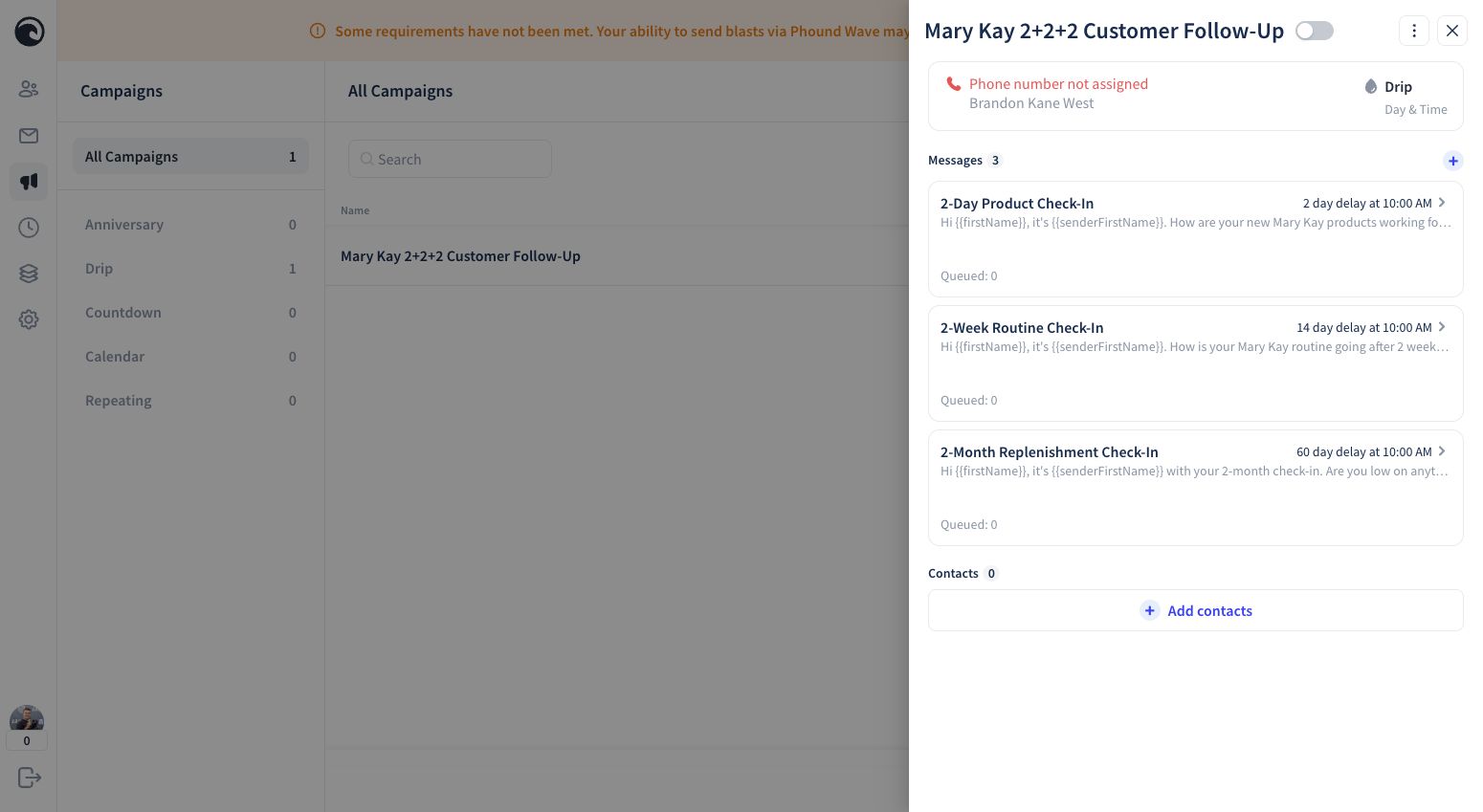
Test Every Text Message
Use Fast Forward to test each message without waiting for its full delay. During the test:
- Confirm names and other personalization fields render correctly.
- Check spelling, punctuation, links, and message formatting.
- Confirm the sender is the approved number you selected.
- Review the contact Timeline for the expected activity.
- Test an ordinary reply.
- Test the STOP experience.
- Remove the test contact when the test is complete.
Do not Fast Forward a message from a number that is still waiting for TCR approval.
Enable a Text-Message Campaign
Before switching the campaign On, confirm:
- The correct approved sending number is selected.
- Every message and delay has been reviewed.
- Delivery times fall within your intended broadcast hours.
- Personalization worked in the live test.
- Reply and STOP behavior worked as expected.
- Only eligible contacts who agreed to receive messages will be added.
Switch the campaign On only after every check is complete. Add contacts according to your approved process; adding a contact starts that contact's campaign timing.
Review an Email Campaign
Keep the campaign Off. Check every intended recipient's saved Email and personalized fields, each template's subject and wording, and the delay/time against broadcast hours. Confirm email access, sending identity, reply handling, unsubscribe process, and an authorized testing method before activation. Do not assume Fast Forward, replying STOP, or removing a contact on reply has the same behavior for email as for texts.
Pause Before Making Changes
If you need to adjust the campaign, switch it Off first. Then:
- Review which contacts are currently associated with the campaign.
- Make the message, delay, sender, or reply-setting change.
- Repeat the relevant test.
- Confirm the enable checklist again before switching the campaign back on.
Pausing is a safety control, not a substitute for checking the status of individual contacts. If you are unsure how a change will affect contacts already in a campaign, leave it Off and contact Phound Support before continuing.
For a complete example, see Mary Kay 2+2+2 Follow-Up.