Phound Wave can send email as part of a one-time Blast or an automated Campaign message. Choose a ready-made email design, change its wording, and use personalized data to greet each contact by name.
This guide covers Wave in a desktop browser, including Wave opened from Phound Desktop. It explains composing and scheduling email, not managing an email inbox.
A short introduction to email in Wave. The video screens are recreated from the product and use sample data.
Before You Begin
- Open Wave with the correct persona.
- Confirm that each intended recipient has an Email address saved in their Wave contact record and is eligible to receive your email.
- Review first names and any other fields your template uses.
- Review your broadcast hours and time zone.
Before a live send, confirm your account's email access, sending identity, reply destination, and unsubscribe process with Phound Support. SMS registration, STOP behavior, and SMS usage instructions should not be treated as email instructions.
Find Email Templates
You can open Email Templates in two places:
- In Blasts > New Blast, select the envelope button beneath Message. Its tooltip is Email templates. Campaign message composers have the same entry point.
- Open Resources > Email Templates to work with reusable designs directly.
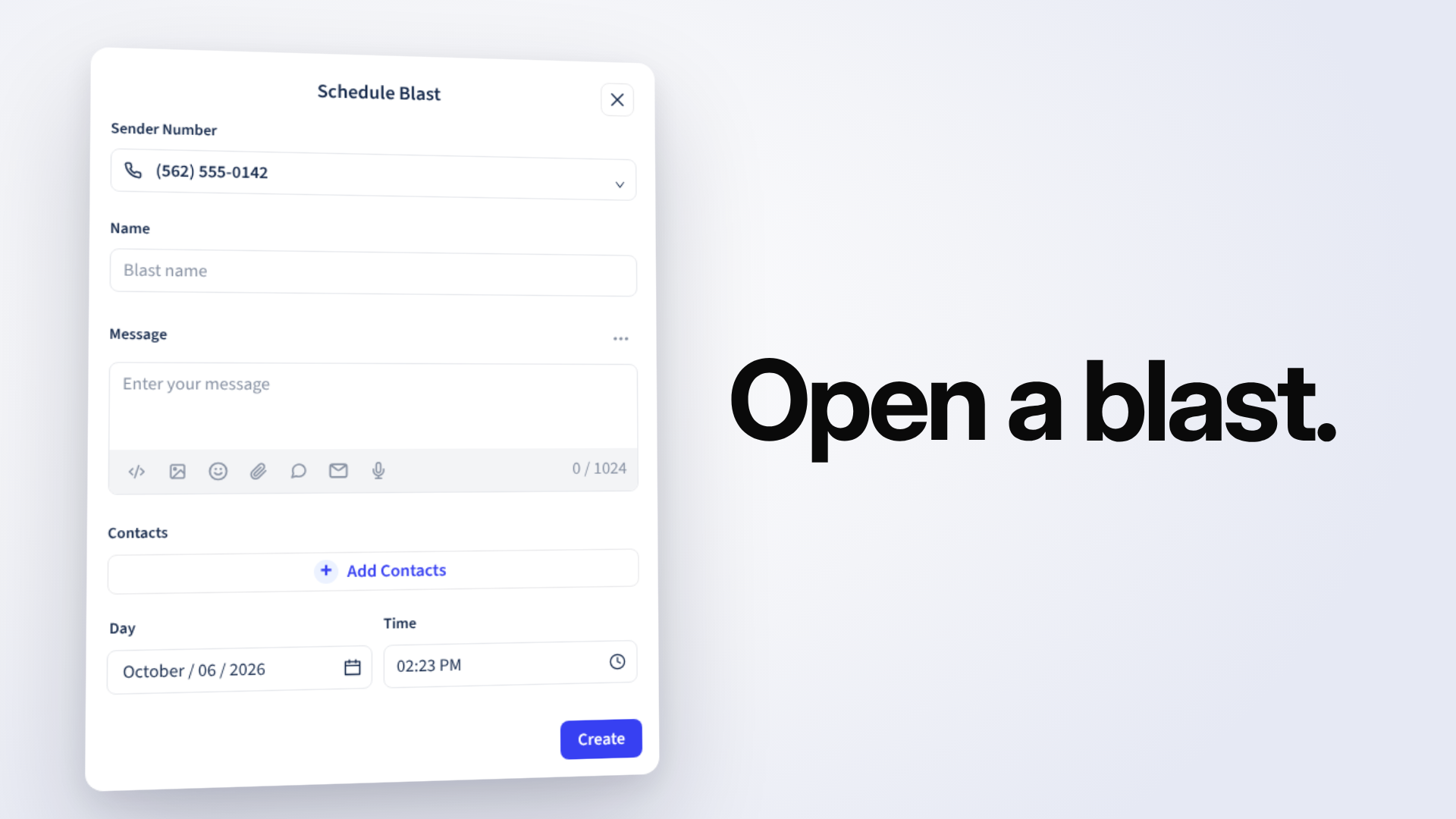
Illustration from the supplied video, recreated with sample data. The envelope is in the toolbar beneath Message.
If you have no saved templates, the window shows No email templates yet, with Create template and Browse library. Open Browse library for ready-made designs, or create your own template.
Choose and Preview a Design
- Open Browse library.
- Use Search template to find a design.
- Select the eye icon to preview it. Switch between Desktop and Mobile to check the email at both sizes.
- Return to the list and select the template row to insert it into your message.
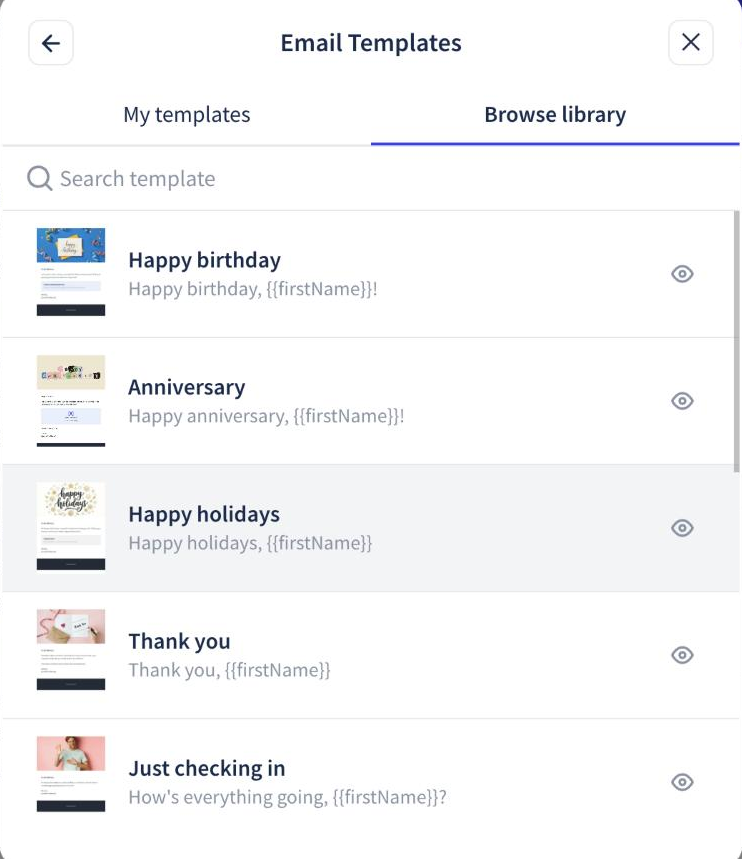
Select a row to use that design. The eye opens its preview. Saved personal templates are accessed through My templates.
The Mobile preview is a phone-sized email layout, not the Phound mobile app. See the template preview instructions.
Create the Email Blast
- Open Blasts and select New Blast.
- Review Sender Number and enter an internal Name for the Blast. The internal name is not the email's subject line.
- Select the Email templates envelope beneath Message.
- Open Browse library or My templates, then select a design.
- Click a paragraph in the inserted email to edit its words. Replace all bracketed instructions, such as
[your recent order / your support], with your own wording. - Select Add Contacts. Choose the Collections or Contacts tab, select your audience, and review Dynamic collection.
- Select Add. Its count, such as Add (124) in the example below, helps you confirm the selection.
- Choose the Day and Time. The time list offers half-hour steps.
- Review the subject, email content, contact data, audience, sender, and schedule. Select Create only when you are ready to schedule the Blast.
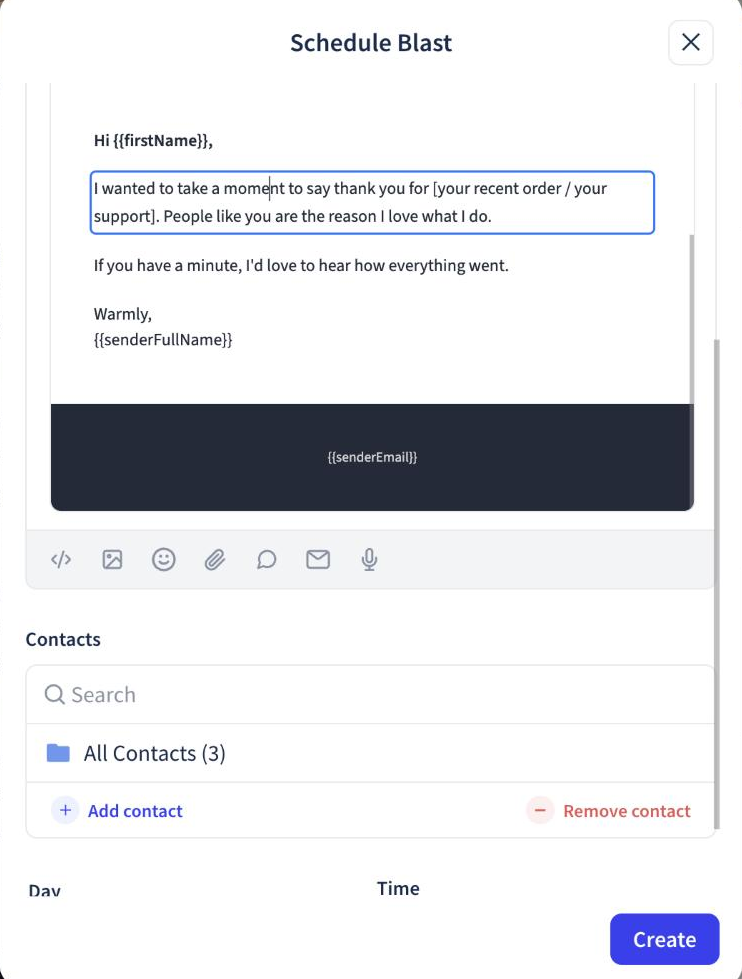
A blue outline marks the paragraph being edited. The email scrolls inside its own message frame.
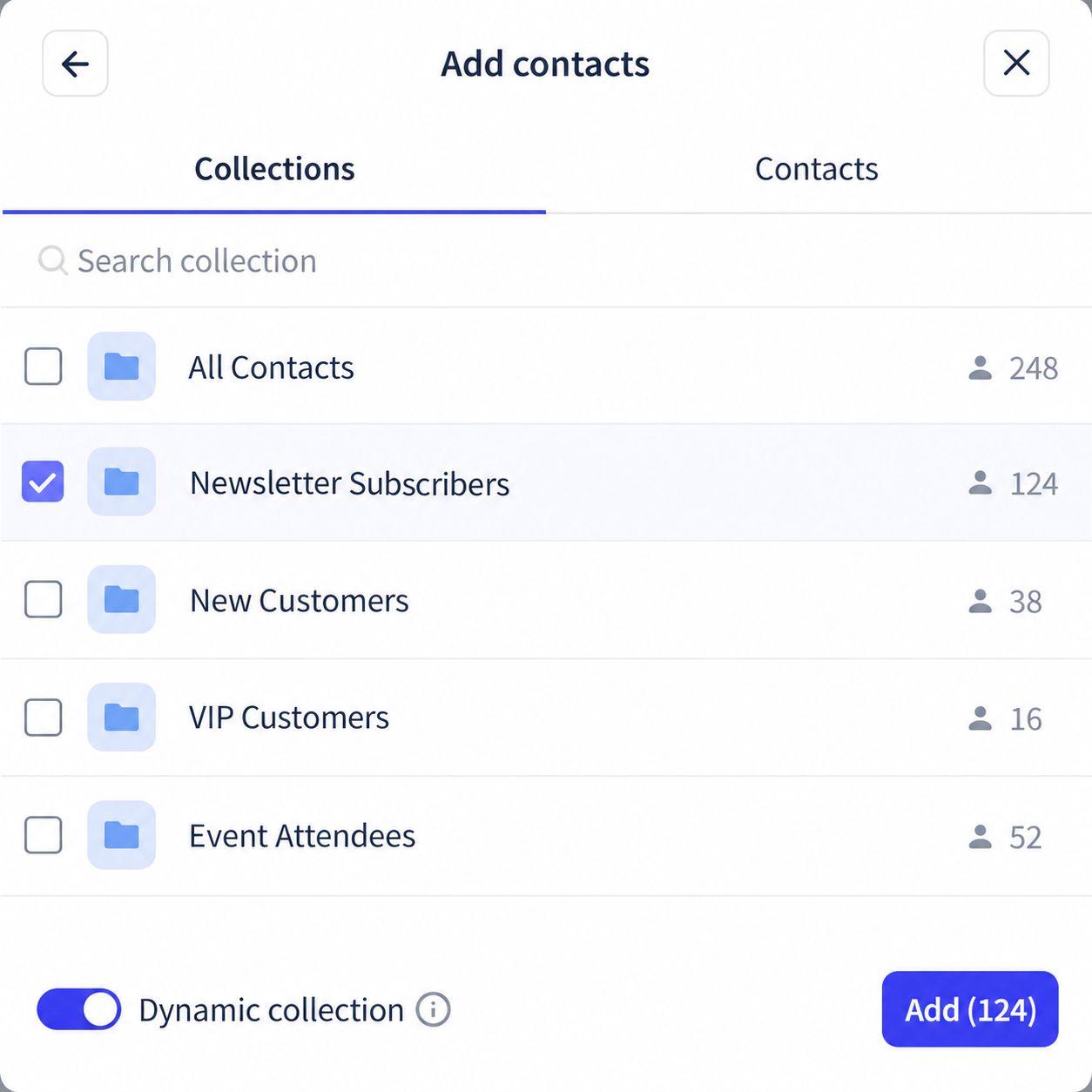
Illustration using sample collections and counts. Newsletter Subscribers is selected; Add (124) reflects the example audience. Dynamic collection off adds current members only. On updates membership from the collection at send time. Review the switch rather than accepting it automatically.
For audience setup, see Contacts, Collections, and Dynamic Audiences.
Important Editing and Scheduling Behavior
Text or email, not both: Choosing an email template replaces text already typed in that message. The text character counter disappears. To send both a text and an email, use two separate messages or Blasts.
Inside the message, you can change wording. To change images, layout, or add more personalized fields, use the template editor. Other composer buttons become unavailable while an email is loaded; Email templates remains available.
The gray subject bar identifies the inserted email. Use its red bin icon to remove the email from this message. This is not an instruction to delete a saved template.
If you close the Blast before selecting Create, Save Changes? offers Save draft, Cancel, and Discard. Choose the action that matches whether you want to keep the unfinished work.
Broadcast hours still apply to email. A selected Day and Time does not override those hours. Email Blasts and campaign messages scheduled outside the allowed window are held until hours resume.
Ready-Made Library Examples
These designs and subjects were shown in the October 6, 2026 walkthrough. Your library can change over time; account-specific filters may differ.
| Design | Subject shown |
|---|---|
| Happy birthday | Happy birthday, {{firstName}}! |
| Anniversary | Happy anniversary, {{firstName}}! |
| Happy holidays | Happy holidays, {{firstName}} |
| Thank you | Thank you, {{firstName}} |
| Just checking in | How's everything going, {{firstName}}? |
| Welcome | Welcome, {{firstName}}! |
| We miss you | We miss you, {{firstName}} |
| Merry Christmas and Happy New Year | Merry Christmas and Happy New Year, {{firstName}}! |
| Thanksgiving | Happy Thanksgiving, {{firstName}} |
| Valentine's Day | Happy Valentine's Day, {{firstName}} |
| 4th of July | Happy 4th of July, {{firstName}}! |
| Congratulations | Congratulations, {{firstName}}! |
Keep personalized tags such as {{firstName}} when you want Wave to fill in contact data. Square-bracketed wording is an instruction for you to replace, not an automatic field.
Common Questions
Can I Change the Images or Subject?
Use the library pencil icon to open the template editor. The editor lets you name the template, set its subject, and customize the design. In-message editing is for wording.
Can I Use the Same Design in an Automated Campaign?
Yes. Campaign messages also offer Email templates. See Use Email in Wave Campaigns for a Drip example.
What Should I Check if Personalization Looks Wrong?
Check the required contact fields and the exact tag in the template. Do not assume Wave supplies a fallback for missing data. See Create and Personalize Email Templates.