Each Phound persona has one selected incoming-call route. This setting decides what Phound should do when someone calls a number assigned to that persona.
Open Incoming Call Settings
- Open Account in the Phound desktop app.
- Select Personas.
- Select the persona that owns the number.
- Under Additional settings, select Incoming calls.
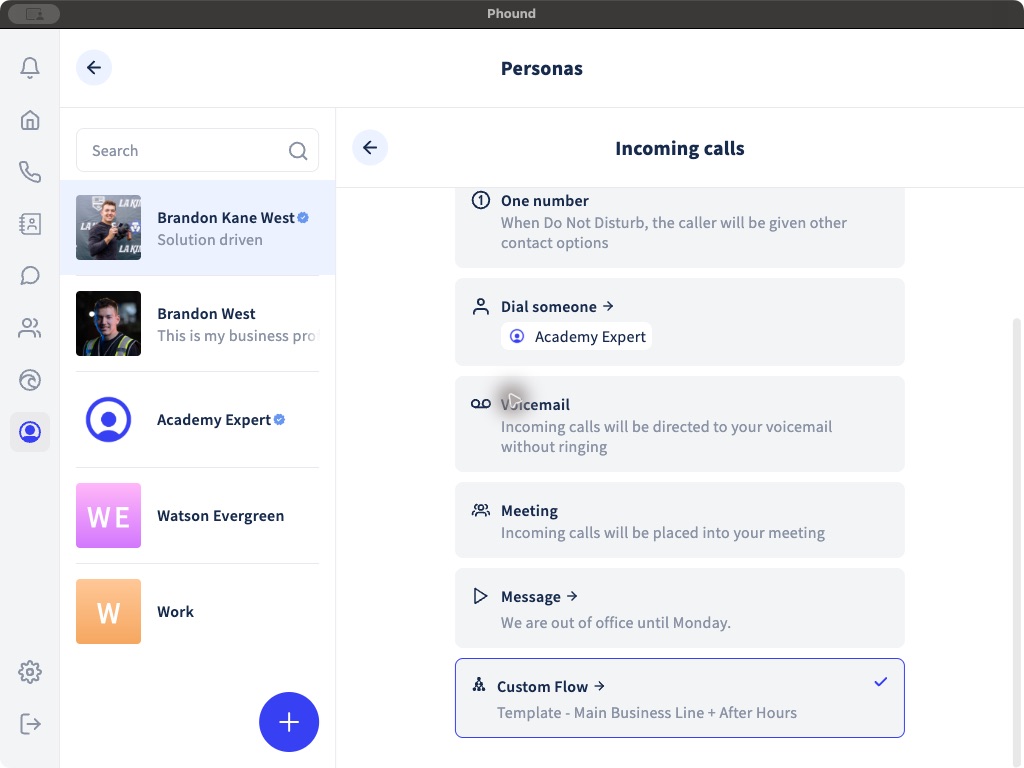
The selected route has a checkmark.
Important: Some current Phound Desktop builds show an outdated Do Not Disturb description beneath One number. One Number follows the persona's availability and busy state. Do Not Disturb does not control this preset.
Understand the Available Routes
| Route | What the desktop app indicates |
|---|---|
| Ring in Phound | Incoming calls are received through the Phound app. |
| One number | Can give the caller a menu of contact options when the persona is unavailable, including when the persona is set to Busy, is already on another call, or is outside its availability schedule. One Number is an incoming-call preset, not a custom Flow. |
| Dial someone | Sends the call to a selected Phound person or group. Open the arrow to review its destination. |
| Voicemail | Sends incoming calls directly to voicemail without ringing. |
| Meeting | Places incoming callers into the selected meeting route. |
| Message | Plays the configured message to the caller. |
| Custom Flow | Runs the selected Phound Flow. Use this for menus, business-hours routing, teams, voicemail fallbacks, and other multi-step handling. |
Why Callers Hear the One Number Menu
The One Number preset can play an IVR menu before connecting the caller when the persona is unavailable. This can happen when the persona is manually set to Busy, is busy on another call, or is outside its configured availability schedule.
This menu does not mean that a custom Flow is assigned. Do Not Disturb is a separate system feature and does not turn the One Number preset on or off.
Remove the One Number Menu
To stop using the One Number preset:
- Open Account in Phound Desktop.
- Select Personas.
- Select the persona that owns the number.
- Under Additional settings, select Incoming calls.
- Select another route. Choose Ring in Phound if incoming calls should ring in the Phound app.
- Confirm that the checkmark moved to the new route.
- Call the number from a different phone and confirm the new behavior.
Changing the route affects new incoming calls to the numbers assigned to that persona.
Before Selecting a Route
Confirm that the route contains a valid destination. A selected person, meeting, voicemail owner, or Flow may be account-specific. Imported Flows should be reviewed for placeholder destinations before they receive real calls.
If you choose Custom Flow, also review:
Test Before Relying on the Route
Call the persona's number from a different phone and test the selected behavior. For One Number, test while the persona is available, manually set to Busy, already on another call, and outside scheduled availability if a schedule is configured. For a Flow, test valid keys, unsupported keys, no input, answered and unanswered transfers, and every fallback.
Only one route is selected at a time. Changing the route changes how new incoming calls are handled, so confirm the checkmark before you leave the screen.