Use Account > Storage to find recordings available to your account. Storage opens a browser list, and selecting a recording opens its detail page where you can download the audio.
This desktop walkthrough was checked in Phound Desktop 6.0.5650. It explains how to access an existing recording, not how to enable recording for every type of call.
Download a Recording
- In Phound Desktop, select the profile icon in the left sidebar to open Account.
- Select Storage. The recordings list opens in your web browser.
- Find the recording you want and select its name or thumbnail. The recording opens in a new browser tab.
- On the recording-detail page, select Download beneath the player.
- Select Download audio when that option is shown.
- Find the saved file in your browser's downloads. Your browser determines the download location and whether it asks you where to save the file.
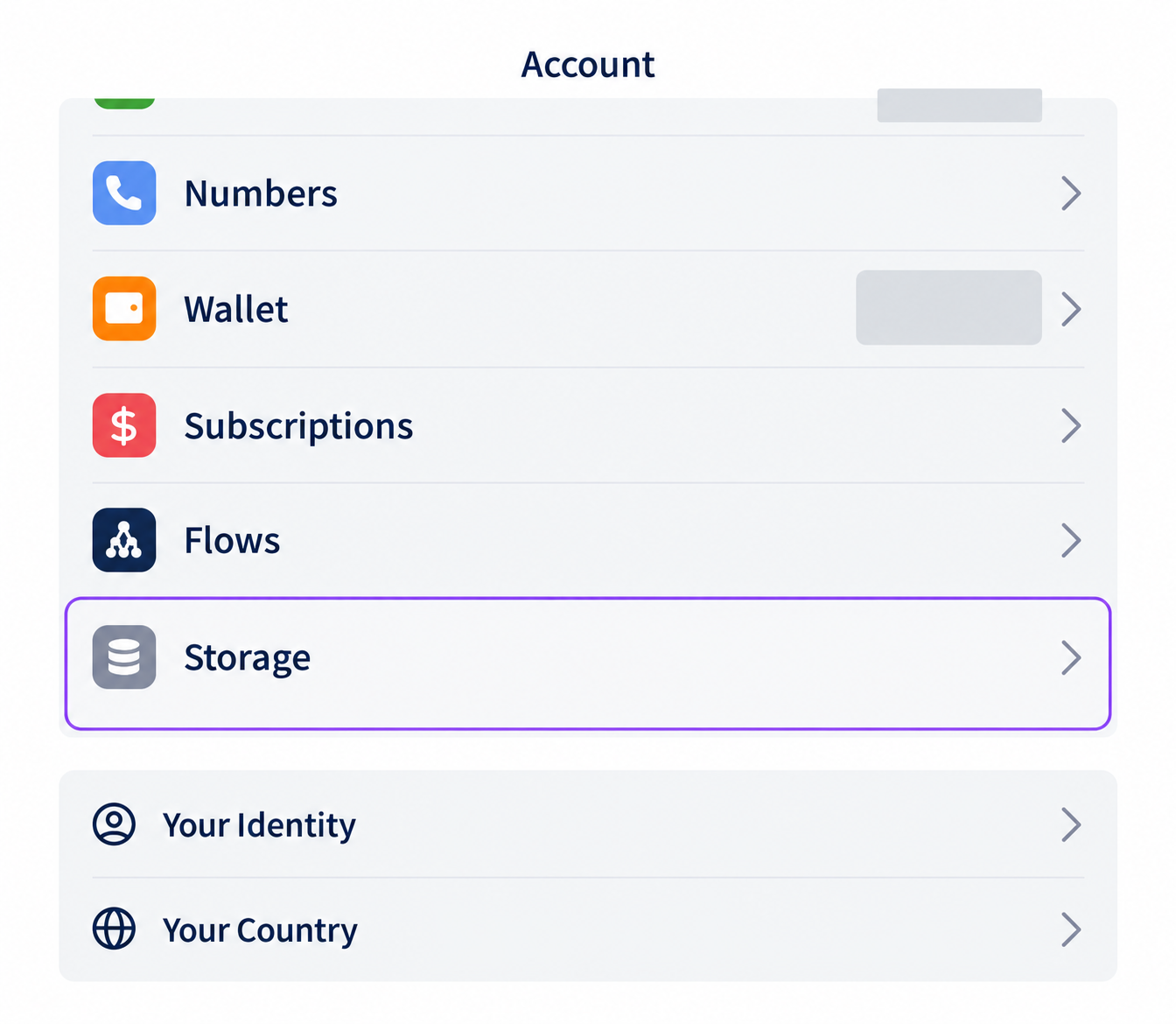
Edited screenshot detail showing Account > Storage. Private values are obscured.
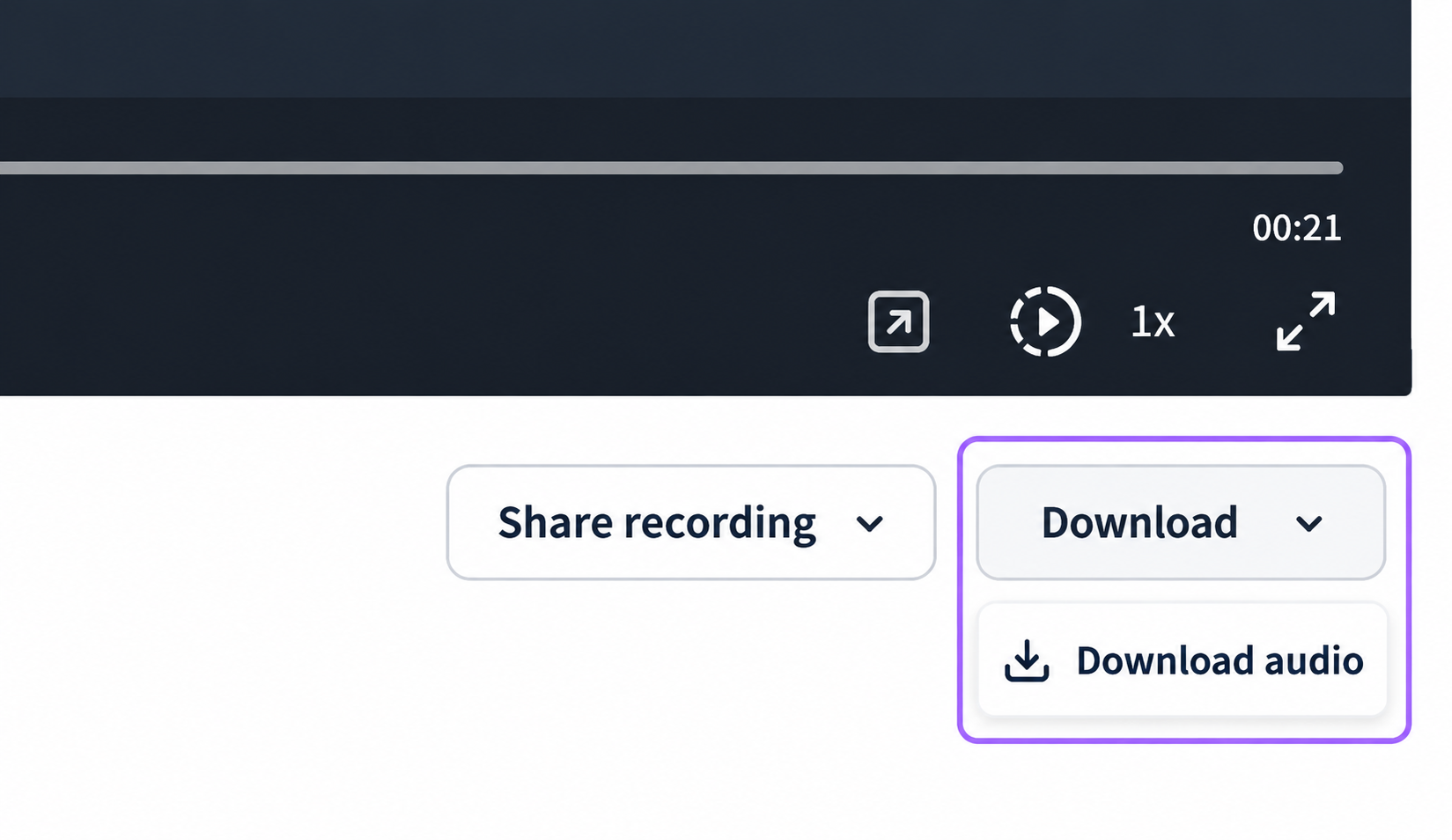
Edited screenshot detail showing Download and Download audio beneath the player.
Select Download beneath the recording player. The Download link in the website header installs the Phound app.
Opening a recording does not replace the browser list. Check the new detail tab if the list appears unchanged after you select a name or thumbnail.
The recording list's selection checkboxes and Action menu are management controls, not the download procedure above. Use Download on the individual recording's detail page.
If a Download Is Preparing
Available download options depend on the recording shown. If the Download menu displays Preparing full recording with a progress indicator, allow that preparation to finish before choosing an available download. The audio option is separate from the full-recording preparation shown for some recordings.
Do not close the detail tab while you are waiting for the file you want. If preparation or downloading fails, note the recording date and the message shown, then contact Phound Support.
Download a Transcript Separately
When a recording-detail page includes Download full transcript, use that link for the transcript. Download audio saves recording audio, while Download full transcript retrieves text. A transcript is not the same file as the audio recording.
Use the controls actually available on your recording's page. A summary or transcript may not be present for every recording.
Record a Meeting
The Phound desktop meeting toolbar includes Record for the host and co-hosts. See In-Meeting Controls and Meeting Hosts, Co-Hosts, and Permissions for meeting controls and role restrictions.
Meeting controls and downloadable files are separate parts of the workflow. This guide's download steps apply to recordings already available through your account's Storage list.
How Is Magnum AI Different?
When Magnum AI is included in a supported call or meeting, it can provide a summary, a speaker-separated transcript, and follow-up answers about the captured conversation. Results can be reviewed in Phound Chat.
Magnum must be included in the conversation it captures. Its summaries and transcripts are separate from recording files. Use Download audio on a recording-detail page for audio, rather than treating a Magnum summary as an audio download.
See Use Magnum AI for Call and Meeting Notes for the assistant-selection and meeting workflow.
Consent and Privacy
Before recording or transcribing a conversation, check the legal and organizational requirements that apply to you and the participants. Obtain any required consent before capture starts. Do not rely on an app control, tone, or announcement as a guarantee of legal compliance.
Downloaded audio and transcripts can contain private information. Save them on a device you control and check who should have access before sharing a file or recording link. Review the current Phound Privacy Policy for data-handling information.
This guide is not legal advice. Consult a qualified legal professional for your situation. 18 U.S.C. § 2511 is one U.S. federal source concerning interception and disclosure of communications, not a complete account of all applicable requirements.
Still Need Help?
If a recording is missing, confirm you are using the intended Phound account and review the list's search or filters. Contact Phound Support with the approximate call or meeting date, your app version, and the problem shown. For Magnum summaries and transcripts, use the Magnum AI guide.