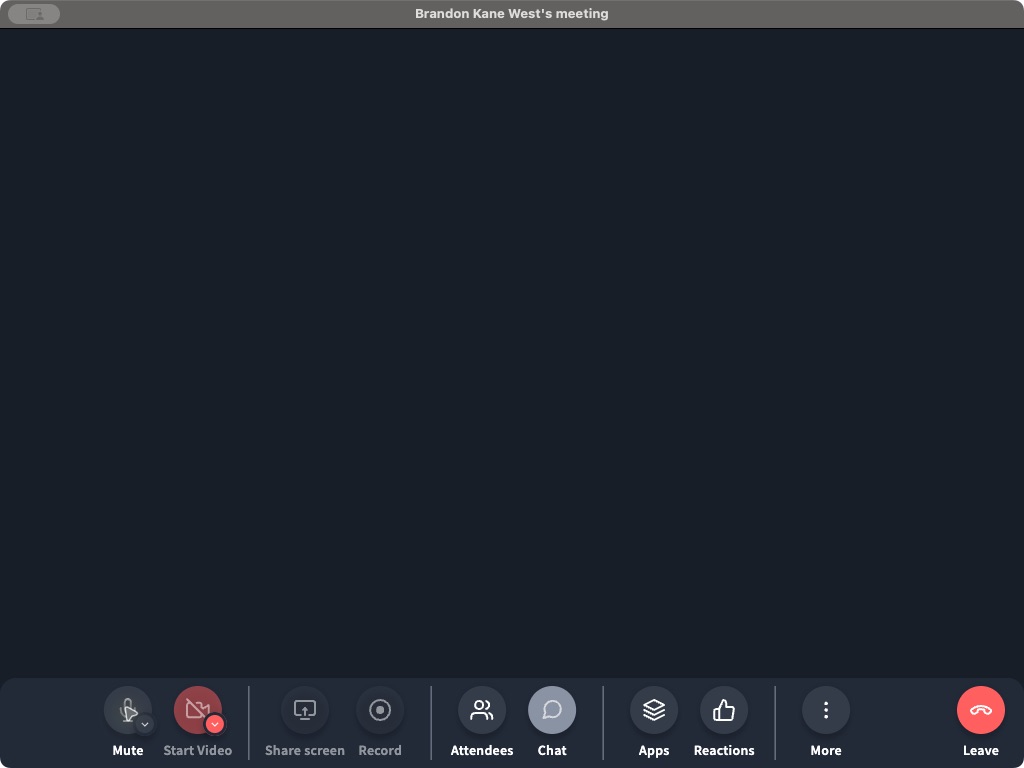
The Phound desktop meeting toolbar controls your microphone, camera, screen sharing, recording, attendees, chat, apps, reactions, view, and exit options.
Meeting Toolbar Reference
| Control | What it does |
|---|---|
| Mute | Mutes or unmutes your microphone. Use the arrow for microphone, speaker, noise reduction, and audio settings. |
| Start Video | Turns your camera on or off. Use the arrow for the video source, virtual background, and video settings. |
| Share screen | Shares your screen when your role and the meeting policy allow it. |
| Record | Starts meeting recording. Phound limits this control to the host and co-hosts. |
| Attendees | Opens the participant list, guest acceptance, search, and invitation controls. |
| Chat | Opens the meeting conversation. |
| Apps | Opens Spotlight and Player. |
| Reactions | Opens Raise hand, Like, Dislike, Laugh, Encourage, and Agree. |
| More | Opens the meeting view choices and Meeting settings. |
| Leave | Leaves the current meeting session. |
To find and download an existing recording, use Account > Storage and follow Download a Recording. The meeting's Record control and access to a saved recording are separate steps.
Manage Attendees During a Meeting
Select Attendees in the toolbar.
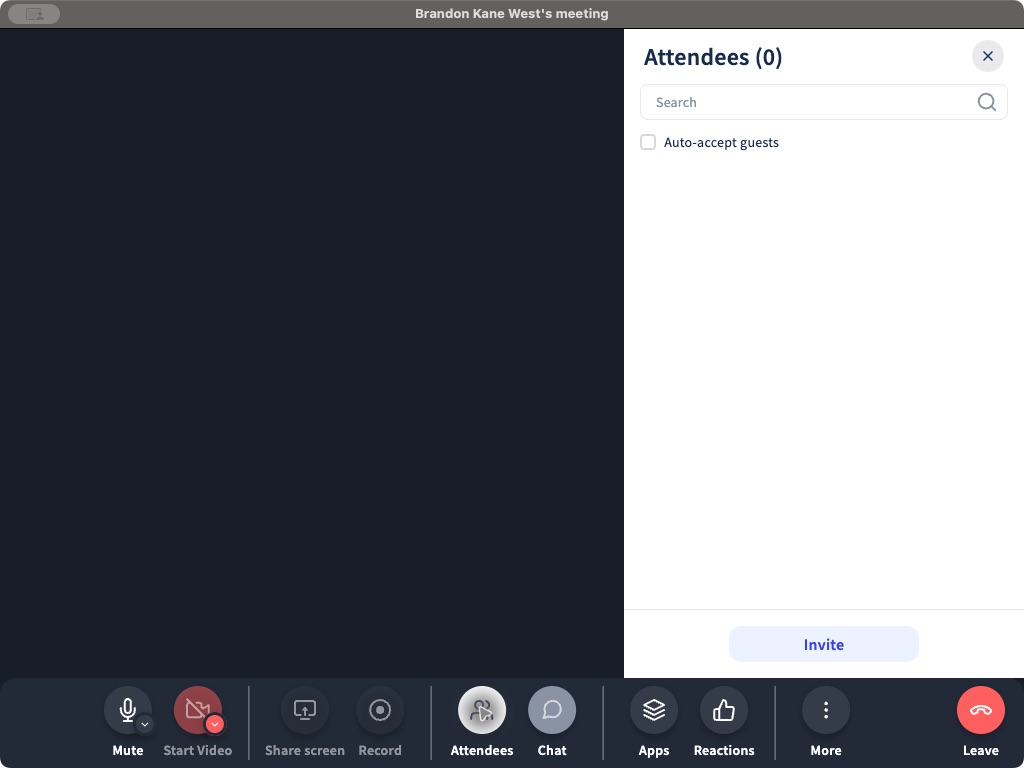
From this panel you can:
- Search the current attendee list.
- Turn Auto-accept guests on or off.
- Select Invite to add someone while the meeting is live.
- Open attendee controls when participants are present.
The invitation screen provides Link, Contacts, and Recents options. Selecting or sending an invitation is what contacts the guest.
Use Meeting Apps
Select Apps in the toolbar.
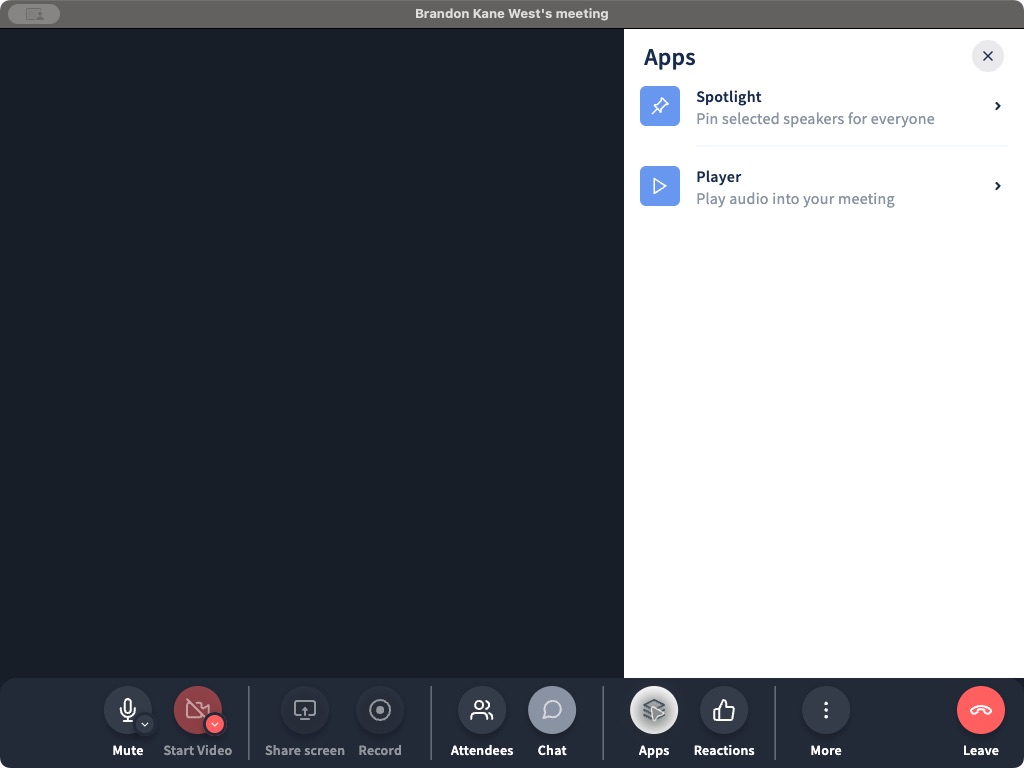
- Spotlight pins selected speakers for everyone. The desktop app identifies this as a host control.
- Player uploads one audio file from your device and plays it directly into the meeting.
Change the Meeting View
Select More to choose a layout.
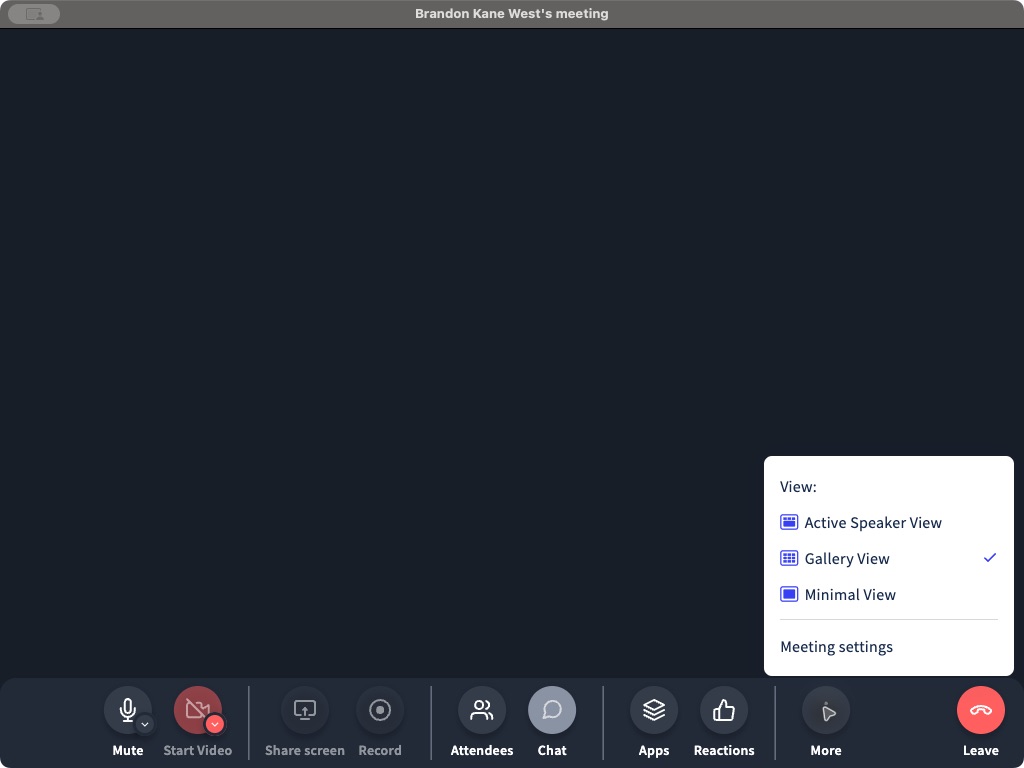
- Active Speaker View emphasizes the current speaker.
- Gallery View displays participants in a grid.
- Minimal View reduces the meeting window.
- Meeting settings opens meeting policy, audio, and video controls.
If a Control Says Host Only
Confirm whether you are the meeting host or an assigned co-host. Then ask the host to review More > Meeting settings > Meeting policy. Screen sharing and video can be set to Everyone or Hosts only, while recording remains limited to the host and co-hosts.
Close the Meeting Window
Selecting the macOS window close button presents two choices:
- End call ends your meeting session.
- Close grid view closes the grid without ending the call.
For role and permission details, see Meeting Hosts, Co-Hosts, and Permissions.