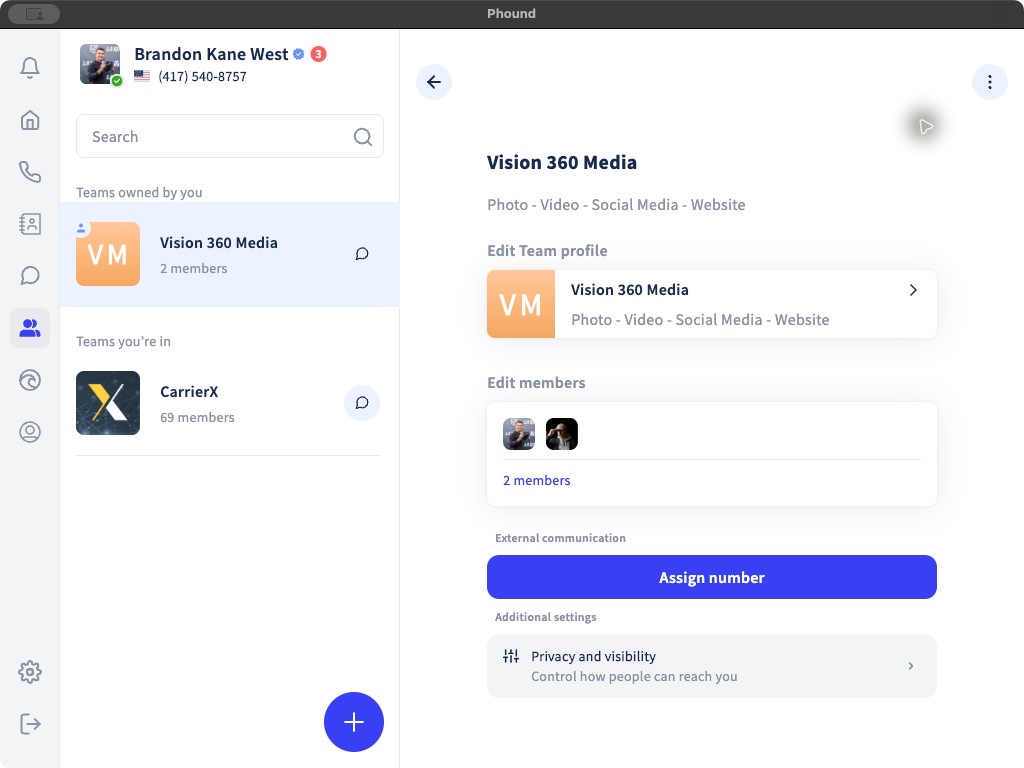
A team owner can assign a phone number to the team for external communication. The number picker separates available numbers from numbers that are already assigned elsewhere in the account.
Open Team Number Assignment
- Select Teams in the desktop sidebar.
- Select a team under Teams owned by you.
- Open the three-dot menu and choose Manage team.
- Under External communication, select Assign number.
Understand the Number List
The assignment window can show:
- Available numbers that can be assigned to the team.
- Assigned numbers that currently belong to another profile, persona, or team.
- Capability badges such as VOICE, SMS, and MMS.
- Number management for broader account-level number controls.
The available numbers and capabilities depend on the account.
Reassign an Existing Number
If a number is already assigned, Phound displays Re-Assign. Reassigning moves that number away from its current assignment and gives it to the team.
Before selecting Re-Assign:
- Confirm who or what currently uses the number.
- Confirm the team should receive future external communication for that number.
- Review whether the number supports voice, SMS, or MMS.
- Notify anyone whose existing workflow depends on the current assignment.
If No Available Numbers Appear
The account may not have an unassigned eligible number. Review Assigned numbers or open Number management. Do not reassign a number until you understand its current use.
After assigning the number, make a controlled test call and, when supported and compliant for the account, test messaging.
For the difference between team communication and individual identities, see What Are Personas?.