The Phound desktop app separates regular chat alerts, Phound-to-Phound voice behavior, and SMS voice-message delivery. Open the gear, then select Chat to review these controls.
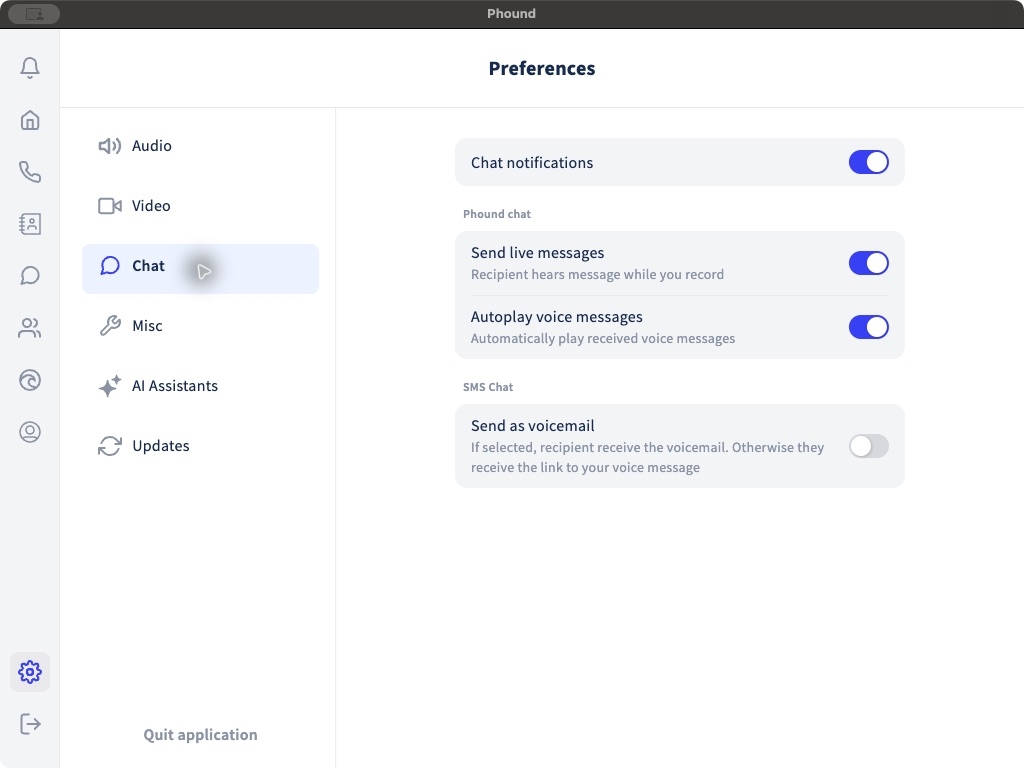
Chat Notifications
Turn Chat notifications on when you want the desktop app to notify you about new chat activity.
This switch controls Phound's chat preference. Your computer's notification permission can still block alerts. If the switch is on but alerts do not appear, confirm that macOS also allows notifications for Phound.
Send Live Messages
Send live messages applies to Phound chat. When it is on, the recipient can hear your voice message while you are recording it.
Turn it off when you want to finish the recording before the recipient receives it.
Autoplay Voice Messages
Autoplay voice messages automatically plays received voice messages in Phound chat.
Leave it off when you often work in shared or quiet spaces. Turn it on when immediate playback is useful and your environment is appropriate for audio.
Send an SMS Voice Message as Voicemail
The Send as voicemail setting applies to SMS Chat:
- When it is on, the recipient receives the recording as voicemail.
- When it is off, the recipient receives a link to the voice message.
This setting changes how an SMS recipient receives your voice recording. It does not change Phound-to-Phound autoplay or live-message behavior.
Quick Troubleshooting
If a voice message behaves differently than expected:
- Confirm whether the conversation is Phound chat or SMS Chat.
- Reopen Settings > Chat and verify the relevant switch.
- Check the computer's volume and Phound playback device.
- If notifications are missing, verify both the Phound switch and the macOS notification permission.
For microphone and speaker selection, see Audio, Video, and Virtual Backgrounds. For basic message instructions, see Send and Receive Texts.