Flow settings apply across one complete Phound Flow. They are separate from the settings inside individual actions.
Open Flow Settings
- Open Account in the Phound desktop app.
- Select Flows.
- Select the Flow you want to review.
- Open the three-dot menu in the upper-right corner.
- Select Flow settings.
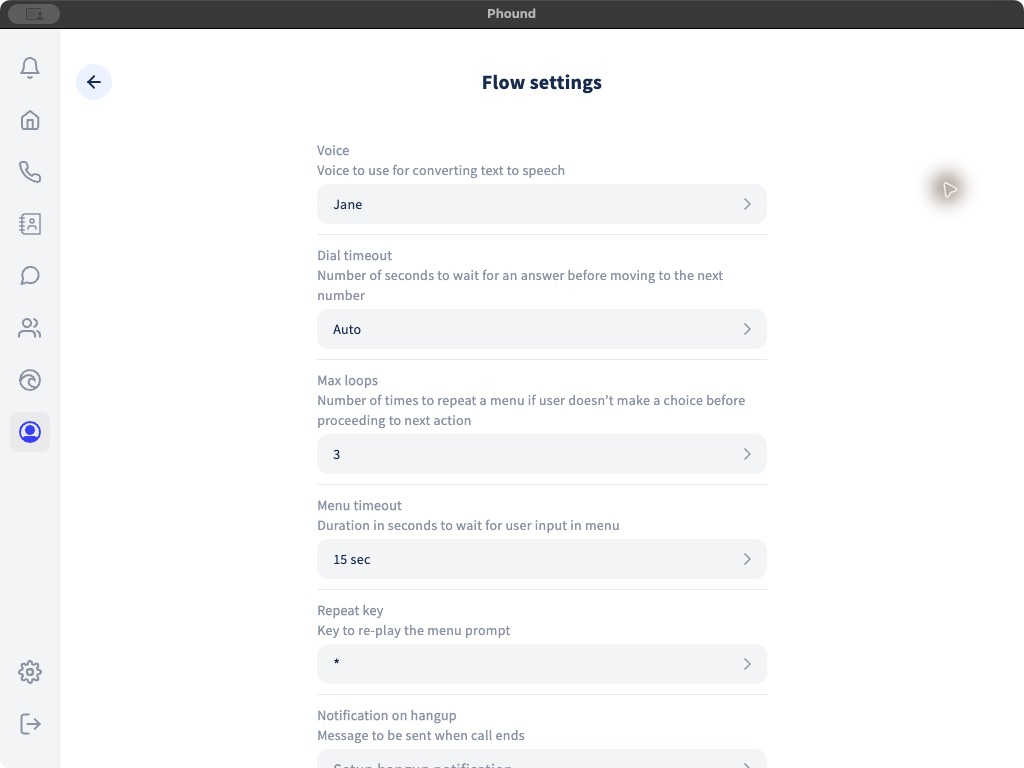
Voice and Timing Settings
| Setting | Available desktop choices | What it controls |
|---|---|---|
| Voice | Jane or John | The voice used when Phound converts text to speech. |
| Dial timeout | Auto, 5, 10, 15, or 30 seconds | The global wait for an answer before moving to the next number. Individual Dial someone actions also have a timeout. |
| Max loops | 1 through 9 | How many times a Menu can repeat after the caller makes no selection. |
| Menu timeout | 1, 3, 5, 10, 15, 30, or 60 seconds | How long a Menu waits for caller keypad input. |
| Repeat key | 0 through 9, *, or # |
The key that replays a Menu prompt. |
Do not assign the repeat key to a Menu option in the same caller experience. Test the complete Menu after changing timeouts or loop counts.
Notification on Hangup
Notification on hangup sends a configured message when the call ends. It can send to the caller or a selected recipient. Messaging charges may apply.
The message editor can insert:
- Caller number.
- Recipient number.
- Current date and time.
- Call duration.
This is different from adding a Notification action to the Flow. Notification on hangup applies at the Flow level, while a Notification action runs only when the call reaches that action.
Caller Prompts
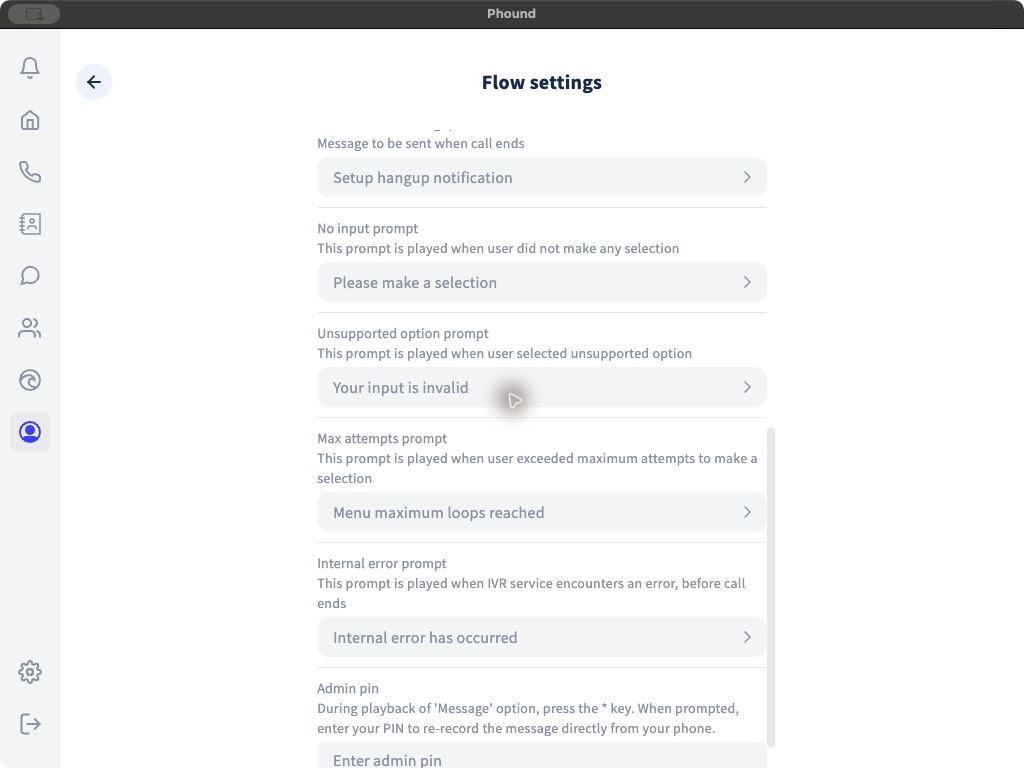
| Prompt | When it plays |
|---|---|
| No input prompt | The caller did not make a selection. |
| Unsupported option prompt | The caller selected a key that the Menu does not support. |
| Max attempts prompt | The caller exceeded the configured number of attempts. |
| Internal error prompt | The IVR service encountered an error before the call ended. |
Each prompt editor can use a custom text message, a new recording, a URL to an audio file, or an uploaded audio file. Preview the result before testing the Flow by phone.
Admin PIN
During playback of a Message action, an authorized caller can press * and enter the Admin PIN to re-record that message by phone.
Treat the Admin PIN as sensitive. Leave it blank in public templates and shared example files. If you use it in production, choose a unique PIN and share it only with people who are authorized to change caller-facing messages.
Quality Check Before Activation
- Preview each text-to-speech and recorded prompt.
- Confirm the repeat key does not conflict with a Menu option.
- Test no input, unsupported input, and maximum attempts.
- Compare the global dial timeout with every action-level timeout.
- Verify the hangup notification recipient and content, or leave it unconfigured.
- Confirm no production Admin PIN appears in a shared Flow file.
For action-specific controls, see Flow Actions Reference.