Chat Assistant actions, also shown as AI Enhancers in the message menu, can rewrite selected text while you are drafting a Phound message. They can also use recent chat history to create a context-aware reply. Phound includes actions such as Improve, Emojify, French, Elaborate, and Sarcastic, and you can create your own.
You still review the result and decide whether to send it.
Chat Assistant actions and canned responses are different. An assistant action uses AI to rewrite selected draft text or create a reply from recent conversation context. A canned response inserts text that you created and saved for reuse. See Create and Use Canned Responses for the saved-message workflow.
Rewrite Selected Draft Text
- Open Chat and select a conversation.
- Write a draft message.
- Select the words you want the assistant to work on.
- Right-click the selected text.
- Choose an action such as Improve or French.
- Review the rewritten text carefully before sending the message.
Only the selected text is targeted by the action. Select the complete draft when you want the entire message rewritten.
Create a Reply from Recent Chat History
An AI Enhancer can use the recent conversation as context instead of only transforming text you selected.
For example, create an action with:
- Label: Polite reply
- Prompt:
Based on recent chat history, write the most polite and professional reply.
Open the AI Enhancers menu from the message field and choose Polite reply. Phound uses the recent chat history to prepare a response in the message field. Review the response carefully before sending it.
Recent chat history provides context, but the generated response can still misunderstand the conversation or add an incorrect detail. Confirm names, dates, prices, links, and commitments before sending.
Use AI Enhancers on Mobile
- Open Chat and select a conversation.
- Open the available actions from the message field.
- Select AI Enhancers.
- Choose the action you want to use.
- Review the result before sending it.
Use a draft-focused action to transform text you wrote, or a context-focused action such as Polite reply to create a response from recent chat history.
Find the Assistant Settings on Desktop
- Select the gear in the left sidebar.
- Select AI Assistants.
- Review the actions listed under Chat assistant.
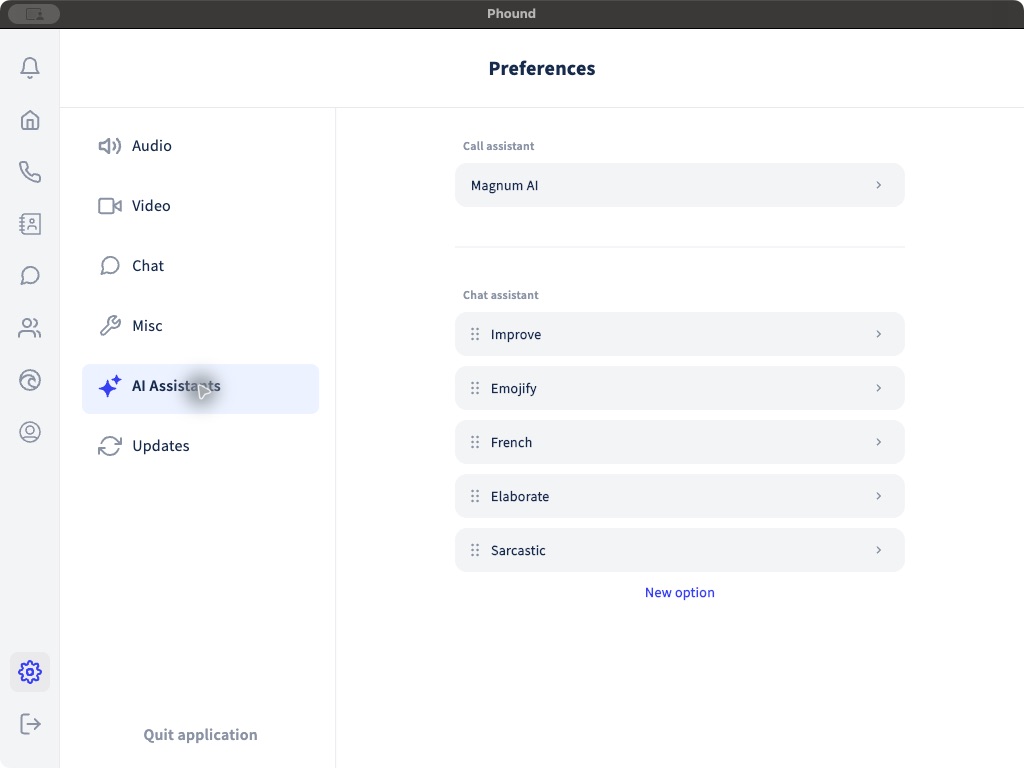
Edit an Existing Action
Select an action to open its editor. Each action has:
- Label, the name shown in the right-click menu.
- Prompt, the instruction sent to the assistant.
- A prompt limit of 300 characters.
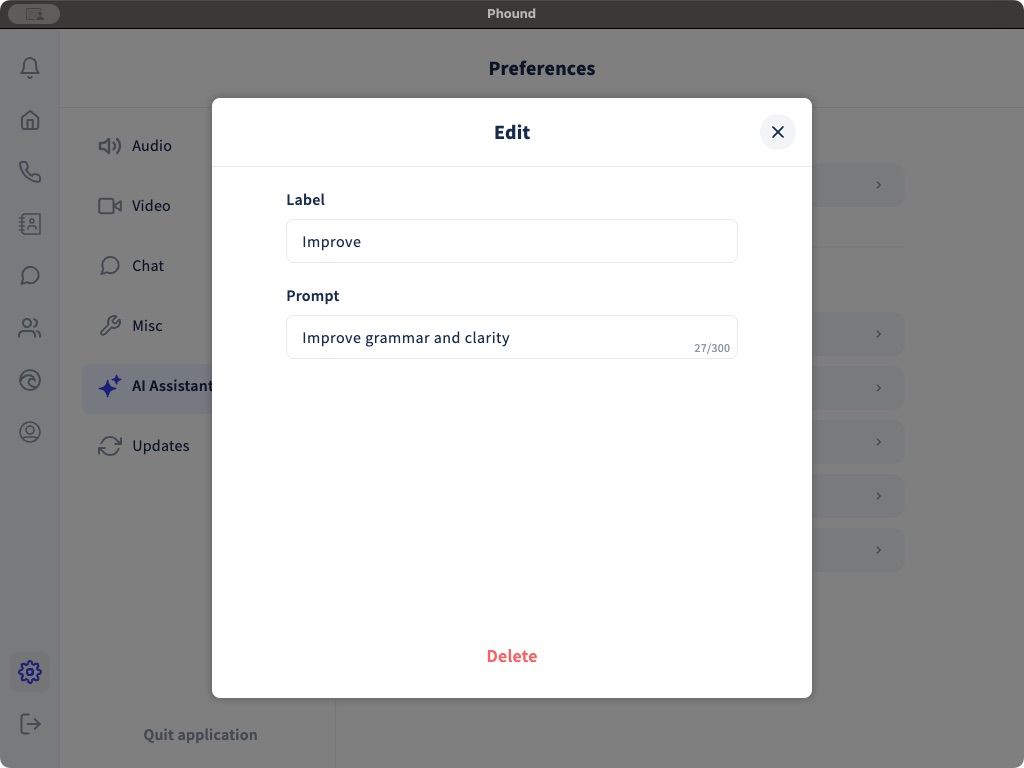
Keep the label short and make the prompt specific. For example, a label of Friendlier could use the prompt Rewrite this to sound warm, clear, and concise without changing names, dates, or numbers.
Create a New Action
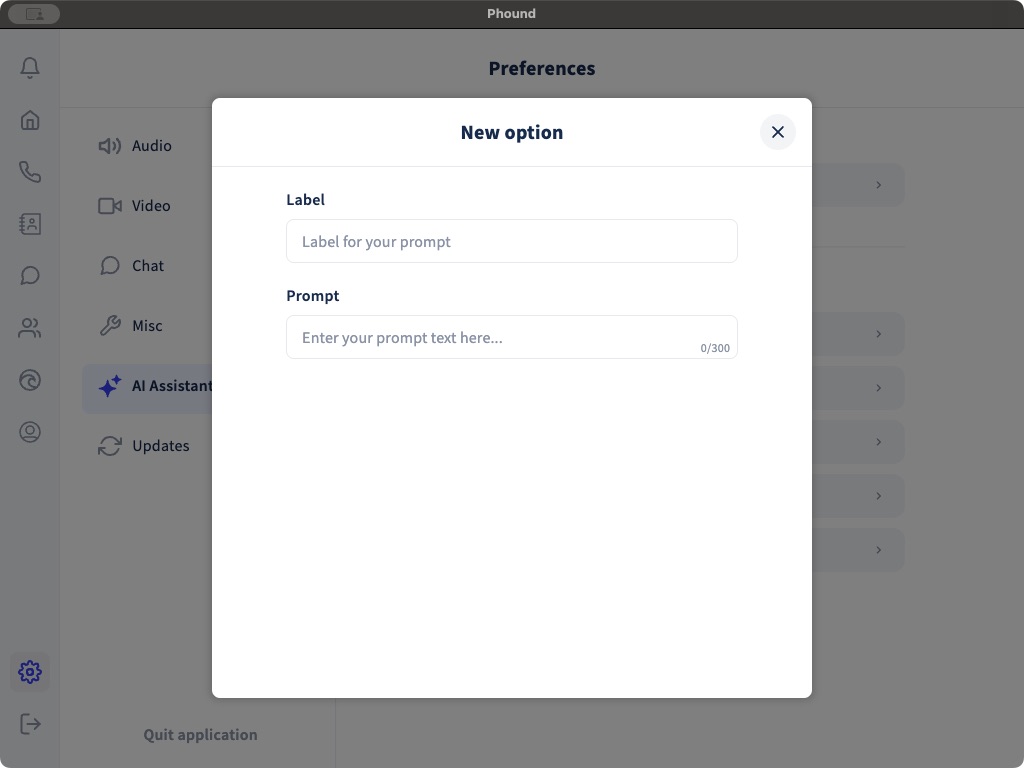
- Open Preferences > AI Assistants.
- Select New option.
- Enter a short label.
- Enter a prompt of up to 300 characters.
- Select Save. The button becomes available after both fields are complete.
- Test the action on a non-sensitive draft before using it with a customer.
Good custom actions include:
- Shorten, remove repetition while preserving the meaning.
- Professional, make the wording more professional without sounding formal or cold.
- Spanish, translate into natural Spanish while preserving names, links, dates, and numbers.
- Next steps, rewrite the draft as a concise list of agreed follow-up items.
- Polite reply, use recent chat history to draft a polite and professional response.
Delete an Action
Open the action and select Delete only when you no longer need it. The option will no longer be available from the message editor.
Use AI Rewrites Carefully
- Review the result before sending it.
- Confirm names, dates, prices, links, and commitments.
- Avoid placing passwords, payment information, or other sensitive information in a rewrite prompt.
- Use a translation action as a starting point, not a substitute for review when exact language matters.
For general chat and voice-message controls, see Chat and Voice Message Preferences.